
Table of Contents
How to Make a TTT Map
Whether you are starting a new level or adding support for an existing map making it game ready is pretty simple. All that is required are weapon placements and spawnpoints. The rest of the entities are optional (Doors and Elevators).
Targeting the game in your addon project
To have access to the gameobjects TTT uses and to test out your game locally in TTT, you need to target the game.
To do this click the cog wheel on the top right of your main editor window.

In the popup you will see a section for Target Game. Click it and seach for TTT and select it. Your settings should show the game like below:
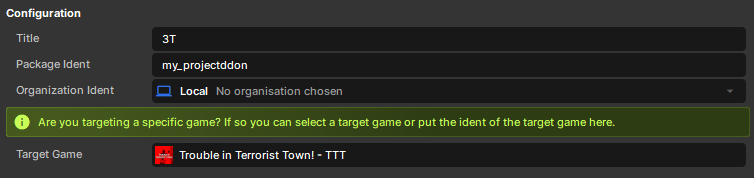
It will ask you to restart. When the editor reopens you will be able to create the TTT gameobjects in hammer.
Creating gameobjects in hammer
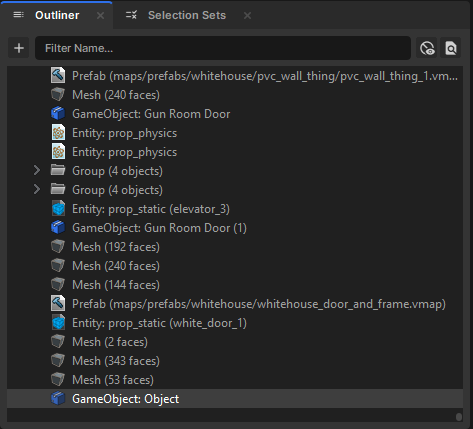
To create a gameobject in hammer you simply click the + icon in the outliner and create an empty. You then add the components onto the gameobject like in scene.
Playing your map locally in editor
To play your map locally simply create a blank scene and add a map instance component. Compile your map then click the empty box next to 'Map' on the component and search or navigate to your vmap file. You will need to compile your map to update it in scene.
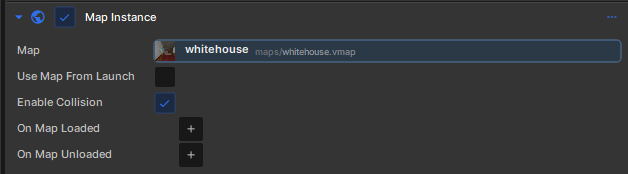
From here to play your map simply play the scene.
VERY IMPORTANT: You must make sure 'Load in engine after building' in the hammer compile menu is unchecked or it will boot the the TTT menu in editor when the compile completes.

Spawns
To set up spawns simply drop a player_info_start into the world for each spot a want a player to spawn, the player will spawn right on it and face the direction the preview shows.

It is HIGHLY recommended you place down as many spawns as you can so higher population servers don't run into issues.
A good rule of thumb is to aim for at least 32 spawnpoints, that is usually what bigger servers cap their player slots at.
Weapon Placements
There a few ways to do weapon placements on your map. You can either do random placements with random weapons, hand place specific weapons, or a mixture of both.
Random Weapon Spawner
The easiest and most versatile method for gun placements is using Random Weapon Spawner. This gameobject will choose a random weapon from the list of regular terrorist weapons. To use, simply place in hammer where you want the weapon to spawn. It has a big bounding that marks where weapons could possibly spawn with a revolving preview. The preview will show how each weapon and ammo box will spawn with your settings. If the bounding box is not inside of something the weapon will have no issue spawning where you placed it.

Random Weapon Spawner in hammer

An example of how Random Weapon Spawner will show up in game
You can determine how many ammo boxes spawn with the weapon. To do this go into the Object Properties in hammer and change the number for the “Ammo to Spawn”. If you do not change the ammo amount gun will spawn with no ammo.
The “Start Asleep” option will force the object to spawn static until it is damaged or interacted with by a player if checked.
Note: Choosing more than two ammo boxes may cause it to spawn outside of the bounding box. The preview will still show you where the boxes will spawn, though.

Random Ammo Spawner & Random Grenade Spawner
These will spawn a random grenade or ammo box where you place them. Simply place them down where you want them to spawn. The preview will show how it will spawn.
Hand Placements
If you want a consistent spawn for a certain weapon, you can use the gun entities and manually place them. To find the weapon entity names select the Entity Tool for the game and type in, “weapons” in the search bar.
Each weapon and ammo type has its own world model when you place it, this will show you exactly where it will spawn. Just simply place them where you want them to appear. You should put the correct ammo type near each weapon if you want them to have ammo, how much is up to preference.

an example of manual placements
Tips
- A good rule of thumb is 60-100 gun placements for most maps. May have to adjust for extra small or large maps
- Don't worry about the map lagging due to too many guns and ammo, s&box is way better at handling it than gmod
- The weapon entities can be manipulated with the Physics Simulation Tool to give placements a natural look
- Don't forget grenades!
Uploading and Adding Support
Adding support is very simple, but must be done when uploading/updating your map through asset.party. Make sure the map is final compiled before uploading.
Make sure the vmap name is 32 characters or less and does not contain spaces or symbols. Only letters, numbers, and underscores will work
Uploading A Map
Make sure before you compile your map you
To upload your map simply go to the editor and find the vmap file in the asset browser for your map and click it. The inspector will show an option to Publish as package, check it.

Click the upload button that appears.
Enter the package indent you want and select your org and then hit next.

On the next page fill out the Title option with the name you want to map to be with proper formatting (ex. community_pool can be Community Pool). You can change everything on this page later on the website, only thing required on upload is the title.
MAKE SURE YOU MAKE THE MAP PUBLIC OR IT WON'T BE VISIBLE IN S&BOX

Once you are done hit next, s&box will now find all the assets the map needs so it will freeze for a bit. Once it lists items as shown in the image below hit Upload to begin uploading the map.

Once the upload is complete you can fill out a change log if you want or let it auto fill with the date. When you are ready click Publish New Revision
Congratulations your TTT map is now published!
Note: Players will have to restart their s&box to see the map if they have it open when you upload
Please reach out to us on our discord if you want to have your map added to the verified list. https://discord.gg/threethieves