
Table of Contents
Doors and Elevators
This page covers rotating doors, sliding doors, and path-based elevators for TTT maps.
TTT doors and movers are map logic components. They can be used directly by players, driven by buttons, or controlled through map IO inputs such as Open, Close, Toggle, Lock, Unlock, GoTo, and CallOrDepart.
Rotating Doors
Use TTT Rotating Door for doors, panels, shutters, or traps that rotate around a hinge.
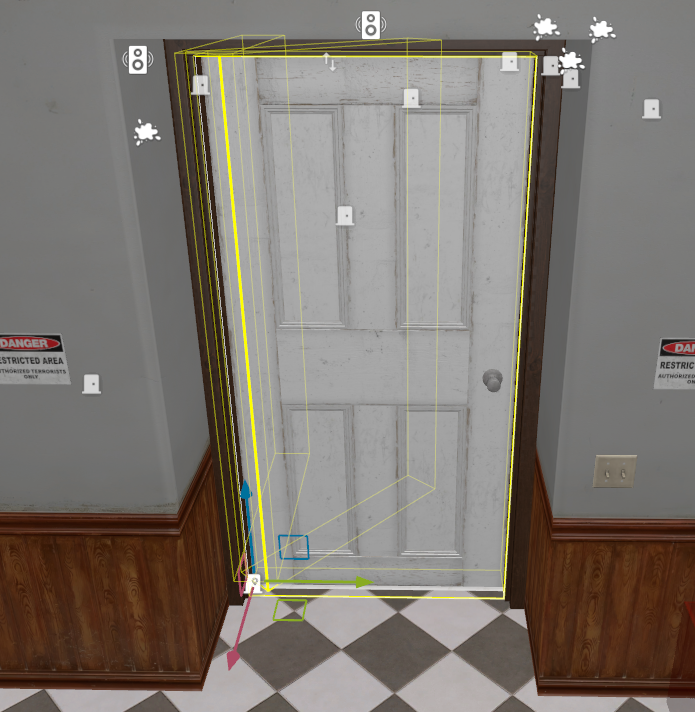
Basic Setup
- Create a GameObject for the door.
- Add your door model with a
Model Renderer. - Add
TTT Rotating Door. - Set
Target Rotationfor how far the door should rotate from its closed position. - Set
Open DurationandClose Durationif the default speed is not right. - Test the door in-game.
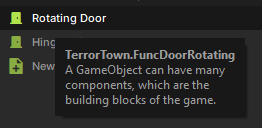
Pivot Setup
If the model's origin is already on the hinge, the default pivot may be enough. If not, create a helper GameObject at the hinge and assign it as Pivot Target. The door captures that helper's world position and uses it as the hinge.
You can also edit the fallback Pivot value directly in local space.
Useful Options
| Option | What it does |
|---|---|
Allow Direct Use | Allows players to press the door directly. |
Direct Use Mode | Controls whether direct use activates or toggles the door. |
Open Away From Activator | Opens away from the player or signal activator when possible. |
Starts Open | Starts open on round start or map reset. |
Starts Locked | Starts locked until it receives Unlock. |
Auto Reset / Reset Time | Automatically closes after opening. |
Partner Object / Partner Name | Mirrors open, close, toggle, lock, and unlock actions to another rotating door. Useful for double doors. |
Sliding Doors
Use TTT Linear Mover for sliding doors, lifts, trap panels, and other two-position movement.
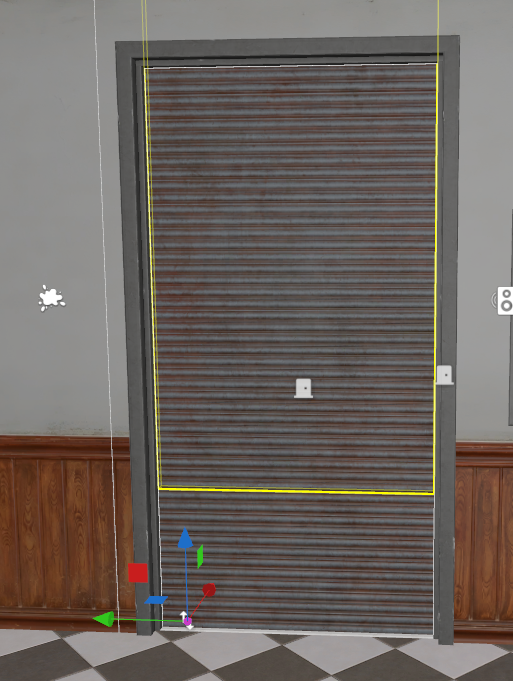
Basic Setup
- Create a GameObject for the moving object.
- Add a
Model Renderer. - Add
TTT Linear Mover. - Set
Move Deltato the local-space offset from closed to open. - Set
Open DurationandClose Durationif needed.

Move Delta is evaluated in the mover's local space. The model's pivot does not need to be on an edge like a rotating door.
Useful Options
| Option | What it does |
|---|---|
Allow Direct Use | Allows players to press the mover directly. |
Direct Use Mode | Controls whether direct use activates or toggles the mover. |
Starts Open | Starts in the moved/open position on round start or map reset. |
Starts Locked | Starts locked until it receives Unlock. |
Auto Reset / Reset Time | Automatically closes after opening. |
Partner Object / Partner Name | Mirrors open, close, toggle, lock, and unlock actions to another linear mover. Useful for paired sliding doors. |
Elevators and Path Movers
Use TTT Path Mover, TTT Path Track, and TTT Path Point for elevators, trains, multi-stop platforms, and any movement with more than two authored positions.
Path movers support two-stop elevators and multi-stop paths.
Path Track
Create an empty GameObject and add TTT Path Track. This object owns the path points.
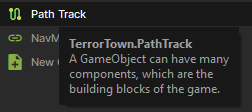
Enable Closed Loop only when the last path point should connect back to the first.
Path Points
Create one GameObject for each stop and add TTT Path Point to each one. These can be children of the track object.
Give each point a stable Point Name, such as basement, lobby, or roof. Use Order when hierarchy order is not enough.
For elevator-style call/send-away behavior, each point can also define a Departure Target or Departure Target Name.
Path Mover
Create the moving platform object and add TTT Path Mover.
Add your platform model with a Model Renderer and make sure the model has collision.
Assign Track directly or set Track Name to the GameObject name of the TTT Path Track.
Useful path mover settings:
| Option | What it does |
|---|---|
Start Point | Optional point name or zero-based index where the mover starts. |
Move Speed | Travel speed in units per second. |
Movement Curve | Curve used while moving between points. |
Queue Requested Stops | Queues GoTo, CallOrDepart, Next, and Previous requests while already moving. |
Starts Locked | Starts locked until it receives Unlock. |
Start Active | Begins autonomous traversal on start/reset when using a non-manual traversal mode. |
Buttons
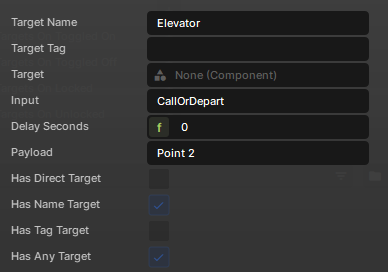
Create a button GameObject and add TTT Button.
Add a Targets On Activated link from the button to the path mover.
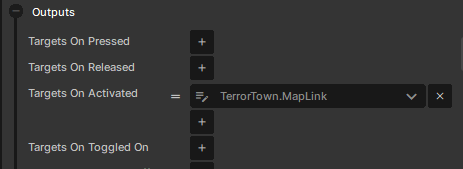
For a button that always sends the platform to a specific stop:
Input   = GoTo
Payload = roof
For an elevator call/send-away button:
Input   = CallOrDepart
Payload = lobby
On a two-point track, CallOrDepart means “come here if away, go to the other point if already here.” On tracks with three or more points, set each path point's departure target so the mover knows where to go when it is already at the caller's stop.
Common Inputs
| Input | Typical use |
|---|---|
Open / Close | Door and linear mover open/close. |
Toggle | Flip a door or mover between states. |
Lock / Unlock | Prevent or allow future activation. |
GoTo | Send a path mover to a named point or zero-based point index. Uses Payload. |
CallOrDepart | Elevator-style call/send-away behavior. Uses Payload. |
Next / Previous | Move to a neighboring path point. |
Pause / Resume / Reverse / Reset | Runtime controls for path movers. |
Testing Checklist
- Test every button that drives the door or elevator.
- Run at least one full round reset.
- Confirm doors and movers return to their intended starting state.
- Confirm locked objects can still be unlocked by the intended logic.