
This is an old revision of the document!
Table of Contents
Doors and Elvators
This page will go over rotating doors, sliding doors, and elevators for your TTT map.
Rotating Doors
A door that will need to rotate on a pivot to open.
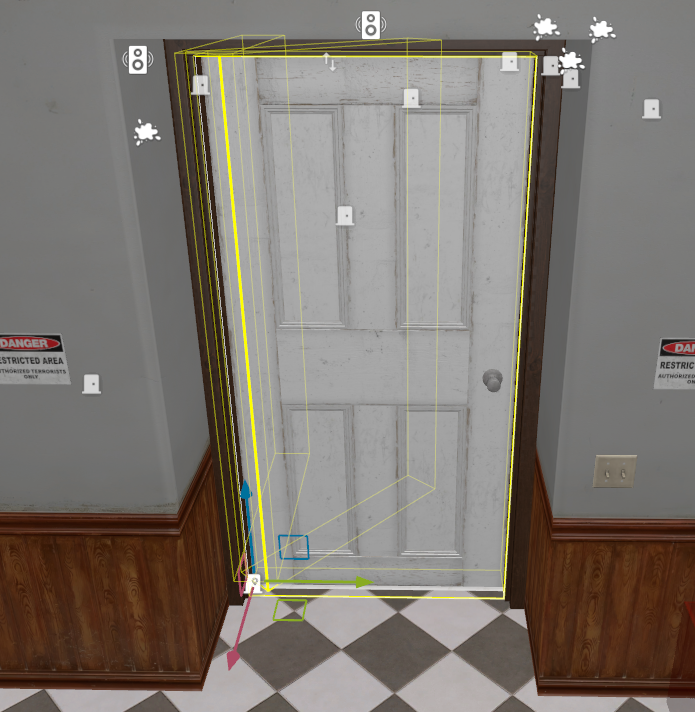
To implement, create a new empty in the outliner and add the Rotating Door component. The model for your door will also need to be added to this gameobject via the Model Renderer component.
Note: The Pivot for the door model you use must have the pivot set to the side the door will rotate on
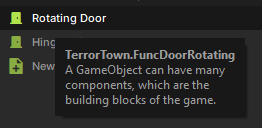
By default, the door will be set to a straight 90 degree pivot. This can be modified in the object properties or dragging the pivot gizmo.
Sliding Doors
A door that will open and close by moving back and forth in one direction.
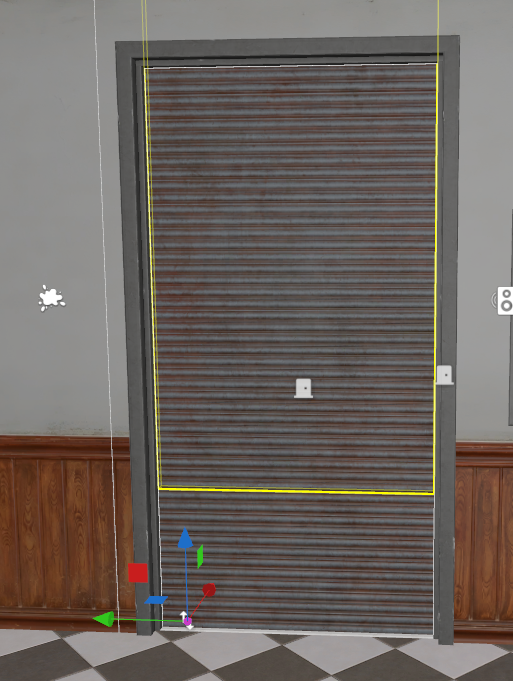
To implement, create a new empty in the outliner and add the Linear Mover component. The model for your door will also need to be added to this gameobject via the Model Renderer component. The pivot does not matter for this type of door.
The Move Delta variable determines how far the door moves when activated

Elevator
An elevator needs multiple gameobjects to function.
Currently, support is in for two stop elevators only.
Path Track
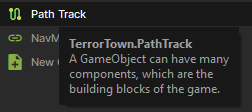
The first thing you will need is a Path Track. Create an empty gameobject and add the Path Track component. This can be placed anywhere, but you need to give it a unique name.
Path Mover
This will be the elevator itself. Create an empty gameobject and add a Path Mover component. Give the gameobject itself a unique name.
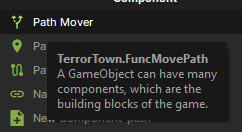
Add a Model Renderer for the elevator model on this object. Make sure your elevator model has collisions.
The Track Name property MUST be filled with the same unique name the Path Track was given.
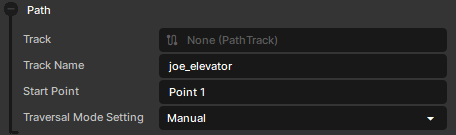
Path Point
You will need to create two separate gameobjects and add a Path Point to each.
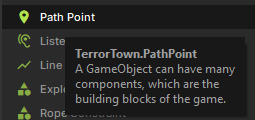
Name them Point 1 and Point 2 in the Point name variable in the object properties.
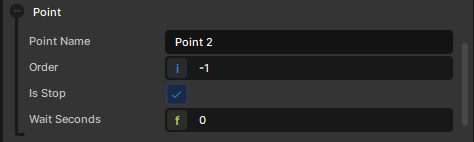
Point 1 will need to have the same position/transform as the path mover. Point 2 will be where the elevator moves to when activated.
Buttons
Your elevator will need a button for each position of the elevator. Start by creating each of your buttons by creating a new empty gameobject and adding a TTT Button Component
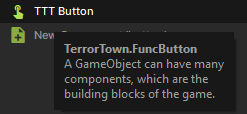
Add a Model Renderer with the model your button will be using. Make sure your model has collisions.
To hook your buttons into the elevator find the Objects section in the object properties and add an Targets On Activated item.
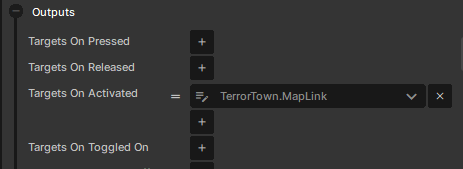
In the popup, you need to set the name to the unique name of the gameobject you made for the elevator itself.
Set the input to “CallOrDepart”
The Payload will need to be set to the point that the elevator goes to when pressed while the elevator is at the button's stop. So the button at Point 1 will need the payload to be Point 2 and vice versa. Buttons can still recall the elevator to its stop, though.
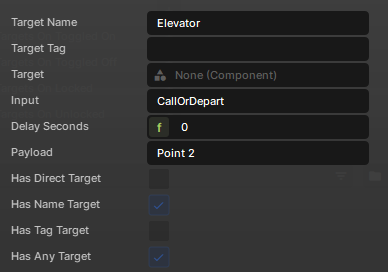
If all of this is set up properly your elevator will be functional with two buttons and two back and forth stops.